Hopefully, Sims 3 will have some serious upgrades to organization within the game itself, or at least have the same abilities as later Sims 2 games.
So let's first get a foundation down for organizing items in your folders. You can practice in your Sims 2 files.
-----------------------------------
Where Did This Come From?Some creators are really nice and put both their name, website title, and the item description into the package file name. Example: XMS_Flora_hair003_Black.package (XM Sims, Flora, Hair, Black Recolor of Mesh 003)
But, more often than not, you get something like this: ahdlkhfn9sph!n.package
You can go through these items one by one and try to decide where on earth you got them, but trust me, if you have so many you can't even give me a number estimate, you'll never get through them.
Once you get to that point, the best thing is to backup the downloads you have
on a disk (not your computer) and start all over downloading the ones you use most (look at your backups for hints as to where you got things). This will make your Sims in-game look funny for a while, but it'll clear out a lot of hard drive space if you follow through.
Where to find the things you had:
If you don't have a Downloads folder, follow these directions:- Head to your Sims 2 folder. Enter it.
- Right-click -> New -> Folder
- Name it "Downloads"
- Put your custom content in it.
If you have Nightlife or above, you can do the Folders option. If you have the base game or University, you'll want to make sure your file names are all in tip-top shape.
Basic Organization (Pre-Nightlife)Every time you download something, rename it (but DON'T change the .package file extension!). Also download the accompanying image and give it the EXACT same name as the file -- so that when you organize files by name, the image and file will be right beside each other.
- Rename Formula: Catagory-Type-Site-Creator-Mesh/Collection-Name/Details.package
- Example: BodyShop-Hair-PeggySims-Peggy-Mesh006-Black.package
- Example: BodyShop-Skin-MTS2-Enayla-PixieSkins-PixieGlow.package
I also include Pay/Free on mine, to remind myself which ones are easy to re-download and which aren't.
Folder Organization (Post-Nightlife)I recommend using Basic Organization
with this.
Including an image with the file will help you clear things out without having to go into the game to do it (my sister-in-law actually put me onto this technique). If you're
completely anal, like me, you can edit the included image to tell you what mesh is required for that item, or you can just include the mesh details in the file name and that should do.
- Body Shop: Accessories / Hair / Clothes / Facial Hair / Glasses / Eyes / Makeup / Skins
- Build Mode: Garden / Stairs / Driveway / Fence / Fireplace / Terrain Paint / Floors / Walls
- Buy Mode: I sort these by collections. "(4esf) Bedroom 3" or "(TSR-Suiryuue) Gas Pumps"
- Default Replacements: You cannot have more than one set of default replacements, therefore I keep them in their own folder. "Skin - (MTS2 Nihilin) Louis" / "Pet Eyes - (MTS2 awasegg)" / "Eyes - (MTS2 spikesminx) Default of Bruno Moonlight Eyes" / "Eyebrows - (MTS2 corvidophile2) Helaene & Serasims"
- Food: Organized with photos by website and creator.
- Hacks: Same as food.
- Lots: The one thing I've never figured out how to properly organize. >_>
The more I have of something, the more subfolders I give to it. My hair folder, for example:
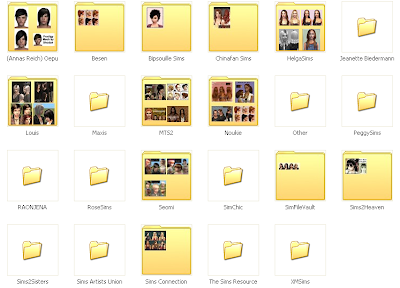
The folders with images showing up are the ones that don't have their
own subfolders.
Meshes Showing Up in BodyshopSome creators include single-color recolors of their mesh as a template for other creators. What the average downloader sees is some really ugly blank white and bright blue things in their clothing selection screen.
You CAN delete these white monstrosities in the game and it will
not delete the mesh. The mesh will be fine.

